Most data questions don't start in a BI tool. They start in Slack. Someone asks how APAC's win rate compared to NAM last quarter. The message sits unanswered, so they go try to answer it themselves and risk making a decision on bad data.
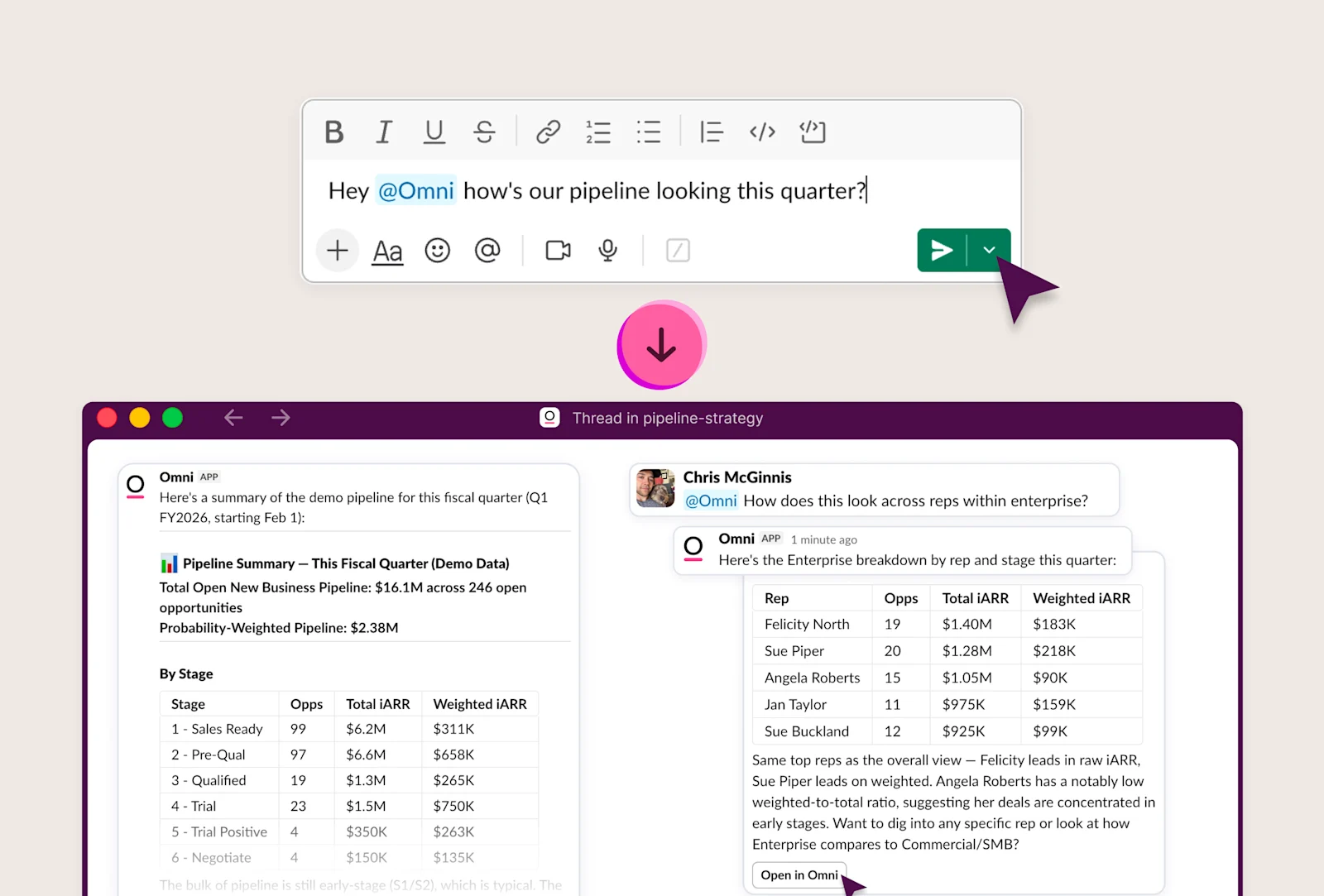
The Omni Slack Agent brings your governed data into the conversation. Mention @Omni, ask in plain language, and get an answer in the thread. Then keep going. Ask a follow-up, add a filter, drill into a segment. Teammates can jump in and build on the same thread, each query scoped to their own permissions. The conversation doesn't end after one answer.
What it does #
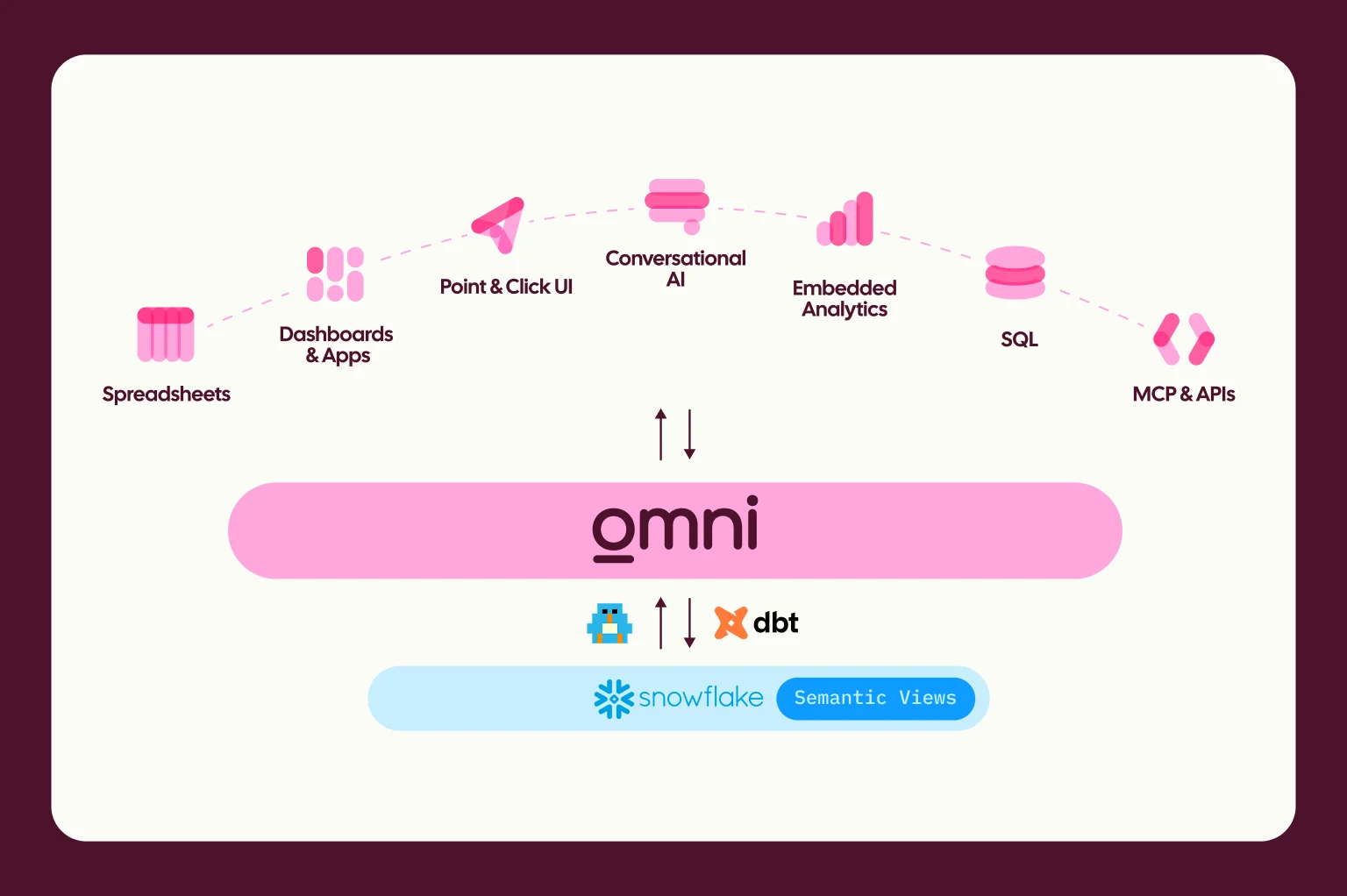
The Omni Slack Agent queries your semantic model directly, so every answer uses your team's actual definitions, metrics, and access controls. The agent returns the same answer your data team would give, because it runs against the same governed model they built.
It also keeps context across the thread, just like in-app chat. You stay in Slack, get answers without waiting on the data team, and every follow-up builds on what came before.
Threads are where it gets useful #
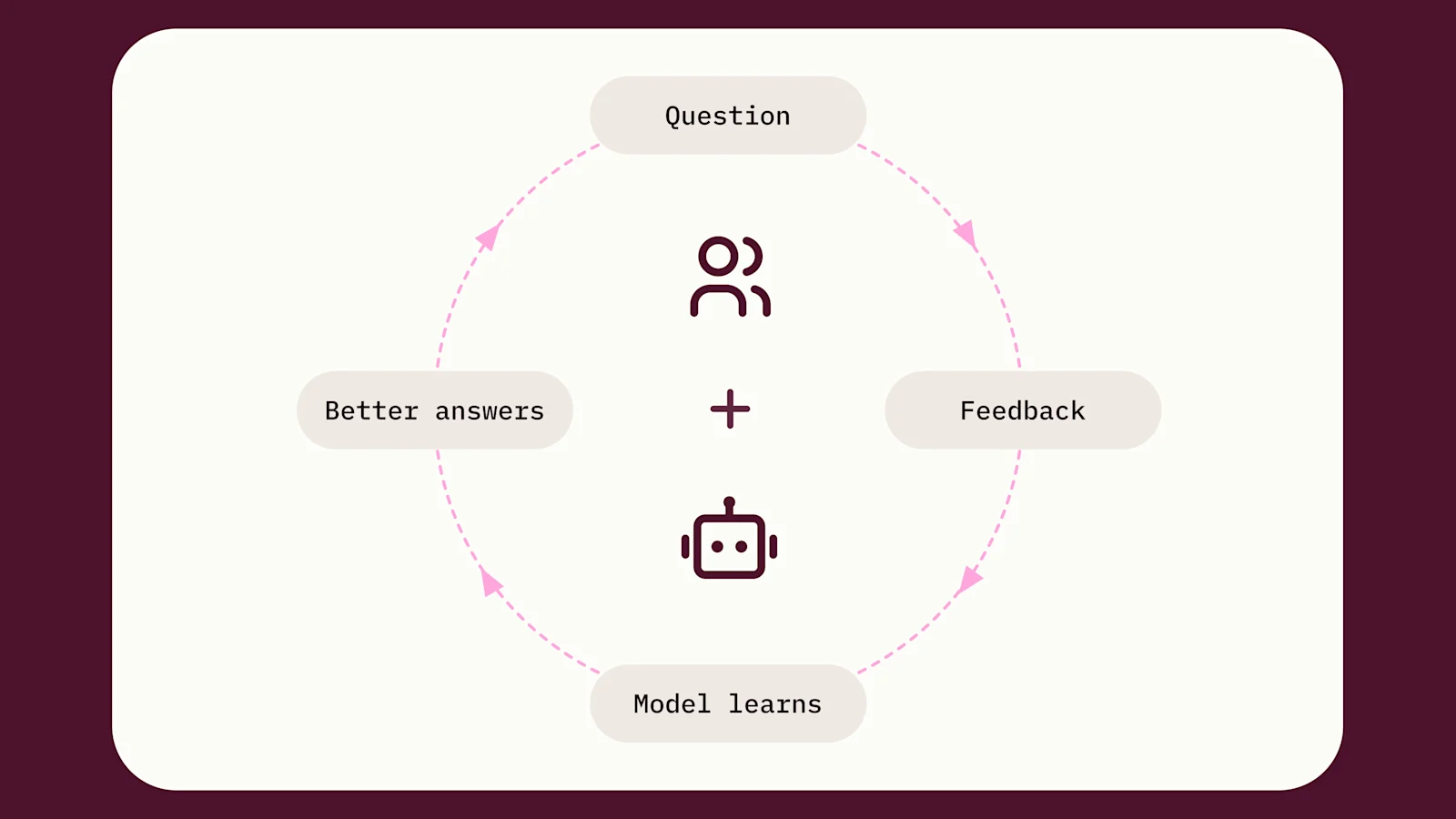
The agent keeps context inside a Slack thread the same way chat in Omni does.
Ask a follow-up, tack on a filter, drill into a metric. Start with "how are enterprise subscriptions trending this quarter?", follow up with "what about by region?", then "which region had the biggest drop in the last 30 days?" Each reply builds on the last without restating the question or repasting filters.
And threads are multiplayer. Teammates can jump in and keep the analysis going together. Someone can ask about pipeline by segment, then someone can refine it to filter by region, then by sales rep. Follow-up queries run against the permissions of the person asking, so access stays appropriately scoped as the conversation evolves.
Two things to know. The first question in a thread sets the model, so follow-ups from teammates run against that same model. The agent also handles one request per thread at a time, so results stay in order.
If you would rather keep things to yourself, you can DM the agent directly and skip the channel entirely.
How it works #
Admin setup (one time per org) #
Admins connect the Slack workspace in Settings > Integrations > Slack.
If you're already using Omni for scheduled Slack deliveries, you're most of the way there. Just upgrade the existing connection with a few extra permissions.
Once connected, the agent sends a welcome DM with an option to announce itself in a channel.
User setup (one time per user) #
The first time someone mentions @Omni, the agent replies with a "Connect your Omni account" button. Click the link, land in Omni, and hit Connect. The agent then picks up the original question and runs it automatically.
Users can also kick off the connect flow anytime from the agent's Home tab in Slack. Once per person, and everyone in your workspace is set.
Privacy controls #
The agent answers based on the permissions of the person asking. It will never use someone else's access to answer a question, so there's no risk of data leaking across permission boundaries.
By default, responses in channels are visible to everyone in that channel. If you ask a question in #revenue-review, the whole channel will see the answer. Admins can change this at the workspace level to make responses private by default. Individual users can also opt into private responses from the agent's Home tab or a slash command.
When a response is private, only the person who asked sees it. A "Share to channel" button lets you post the answer for the rest of the channel. Every answer is scoped to what that user is allowed to see.
Get more from the Slack agent with Topics #
To get the most out of the Slack Agent, we recommend building out Topics for the data people ask about most. Topics give the agent context about your business: which fields matter, how metrics are defined, and what logic to apply when questions come in. A few well-built Topics can cover the questions your team asks most. Review your Slack requests and data tickets to decide where to start.
Our AI optimization guides walk through preparing your model end-to-end. You can get a head start in the IDE with our Modeling Agent, or use the CLI and Agent skills for tools like Claude to do the heavy lifting.
Get started #
The Omni Slack Agent is available now. If you're an org admin, set it up today from Settings > Integrations. Read the setup docs for step-by-step instructions, or reach out to our team with any questions.
Once connected, use the welcome message to introduce the agent in a high-traffic channel. That's the fastest way to drive adoption across your team.
Your data lives in Omni. Your questions live in Slack. Now they meet in the same conversation.