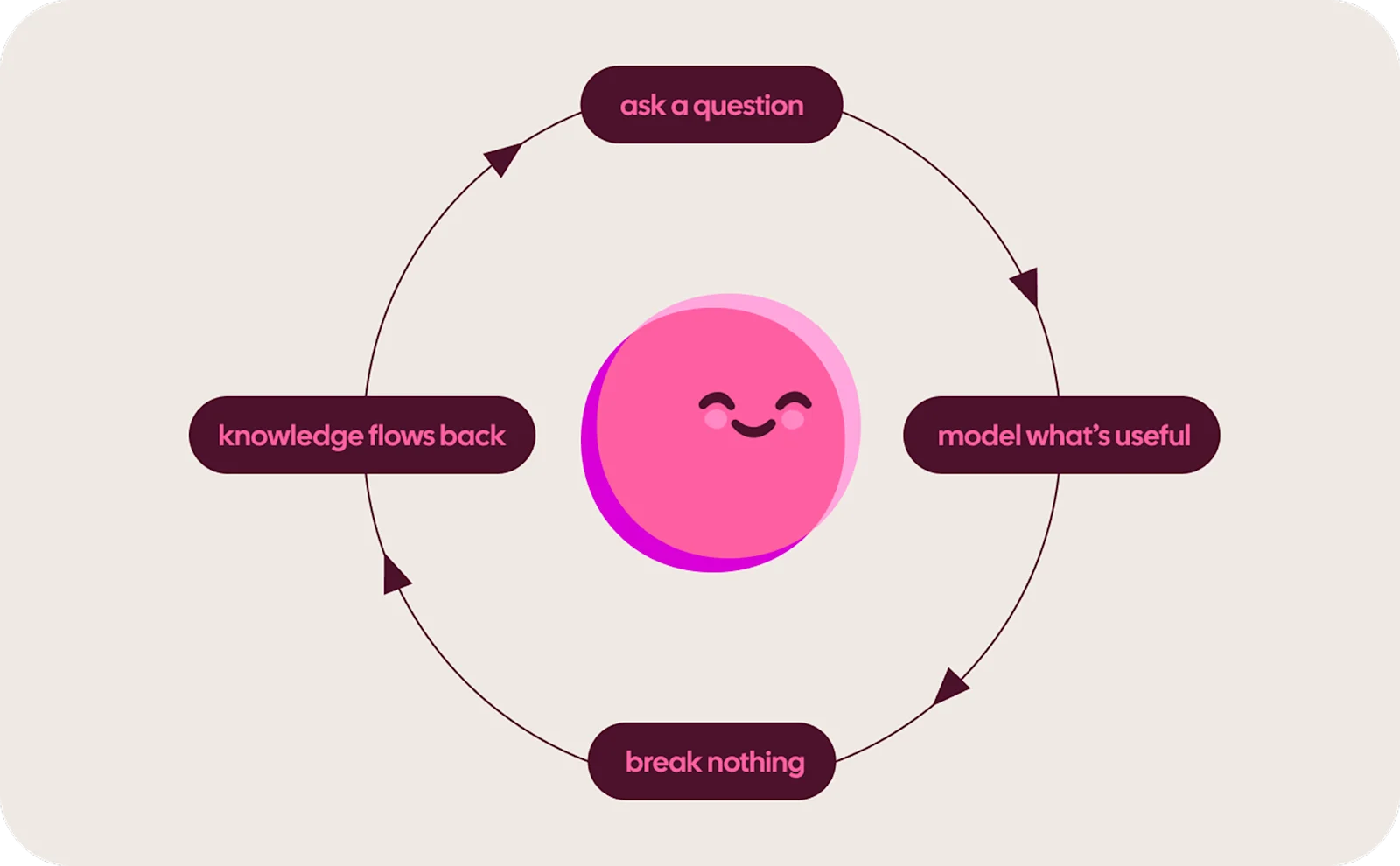
A semantic layer is essential infrastructure for delivering repeatable, trusted metrics to your business. But not all of the knowledge of a business fits in a semantic model, nor should it.
There’s a lot of valuable context that lives alongside it. Everything from your company’s mission and quarterly OKRs to brand guidelines and app-building best practices. That’s all really important context that isn’t typically captured in analytics, or even data warehouses, but all companies have it, and the work has already been done. It just isn’t somewhere your AI can use it.
Data is one half of the equation, and that broader context is the other half. You want them together, so humans and agents have what they need wherever they’re working, whether that’s answering a data question, building an operations dashboard or app, or running a workflow.
Today we’re introducing two new ways to bring that context to Blobby, Omni’s agent:
A fully revamped connector system that makes it easier to connect Omni to external context sources. There are ready-made connectors for tools like GitHub, Notion, Salesforce, and Gong, and you can connect any tool with an MCP server.
Context files, which are Markdown files that hold freeform context and sit next to your data models.
Together, they’re really powerful. You can connect an external source, then write up a brief description in a context file to help Blobby understand when to reach for it.
A human or AI analyst needs two things #
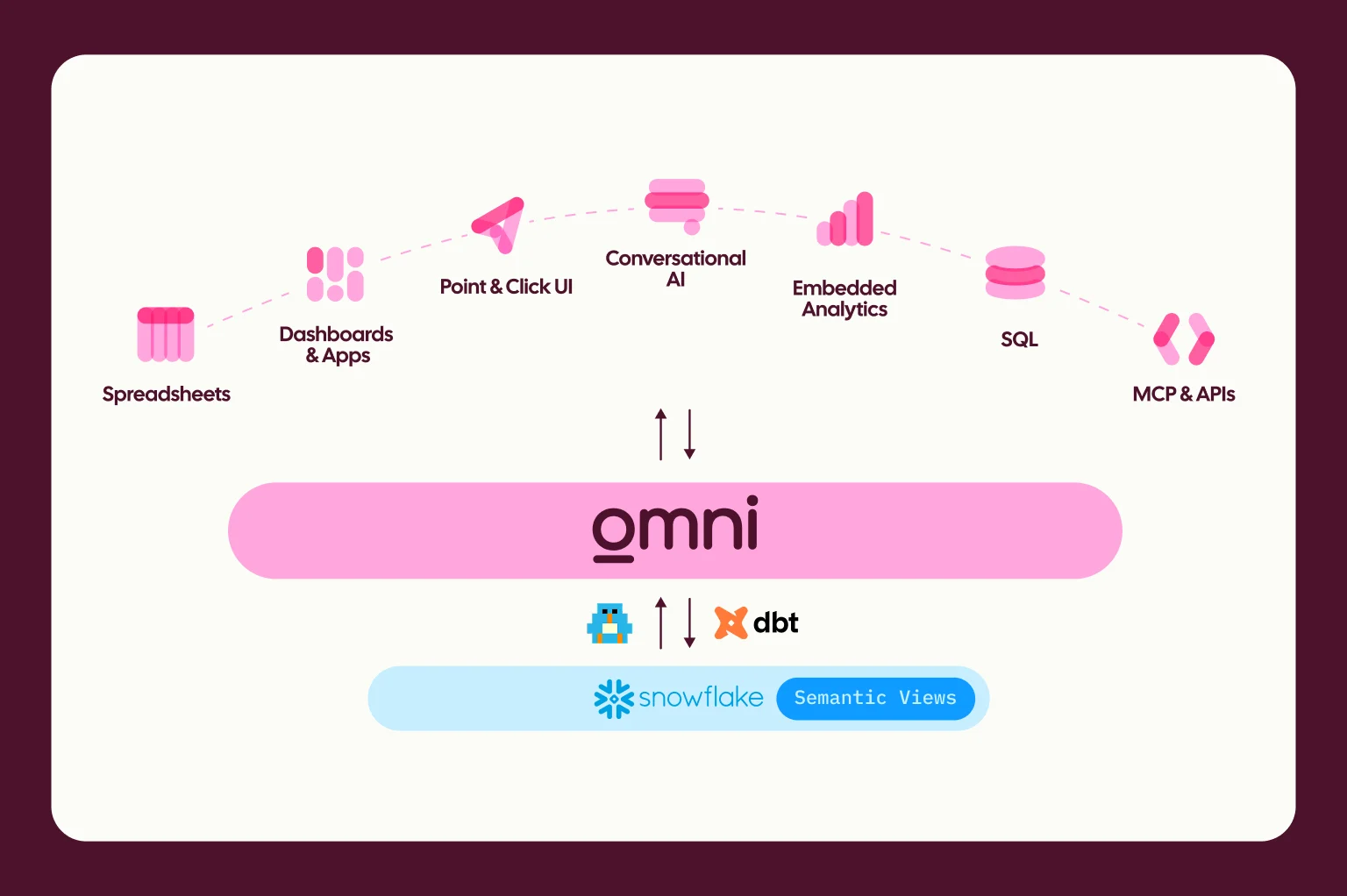
Omni’s semantic layer provides the first: governed metrics and definitions. It’s the central piece, and it’s what gives humans and agents shared language and guardrails. When someone asks “What’s our ARR?” or “How many customers do we have?”, Blobby has to go through the semantic layer with its definitions and permissions to answer.
Users with modeling permission have been able to expand on that foundation with AI context at the model, view, and field levels, helping customers like Checkr cut time-to-insight from hours to minutes.
Those AI context parameters in the semantic model aren’t going away. It’s still the best place to store context about a specific model, view, or field. But a lot of the other context an analyst needs doesn’t naturally fit there.
Some of it’s org-wide, like your mission statement, brand rules, and report templates, and some is personal, like how you want your charts to look, or what you mean when you ask for a “short” summary. That kind of context is more guidance than guardrail.
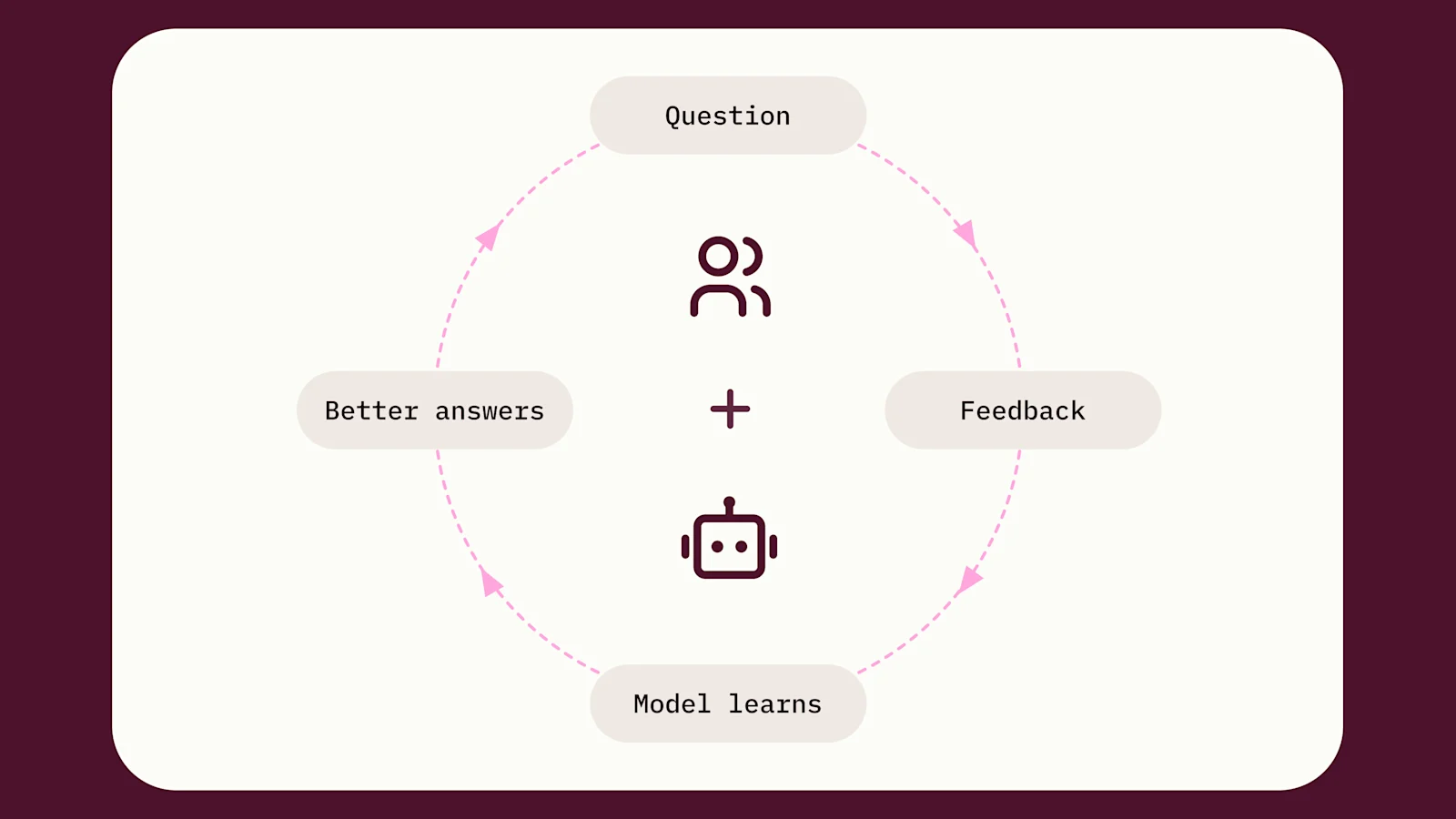
Context helps the semantic layer disambiguate, and the semantic layer gives context guardrails
With relevant context, agents can go beyond generic responses and bring the detail and care great analysis requires, instead of filling in gaps with assumptions.
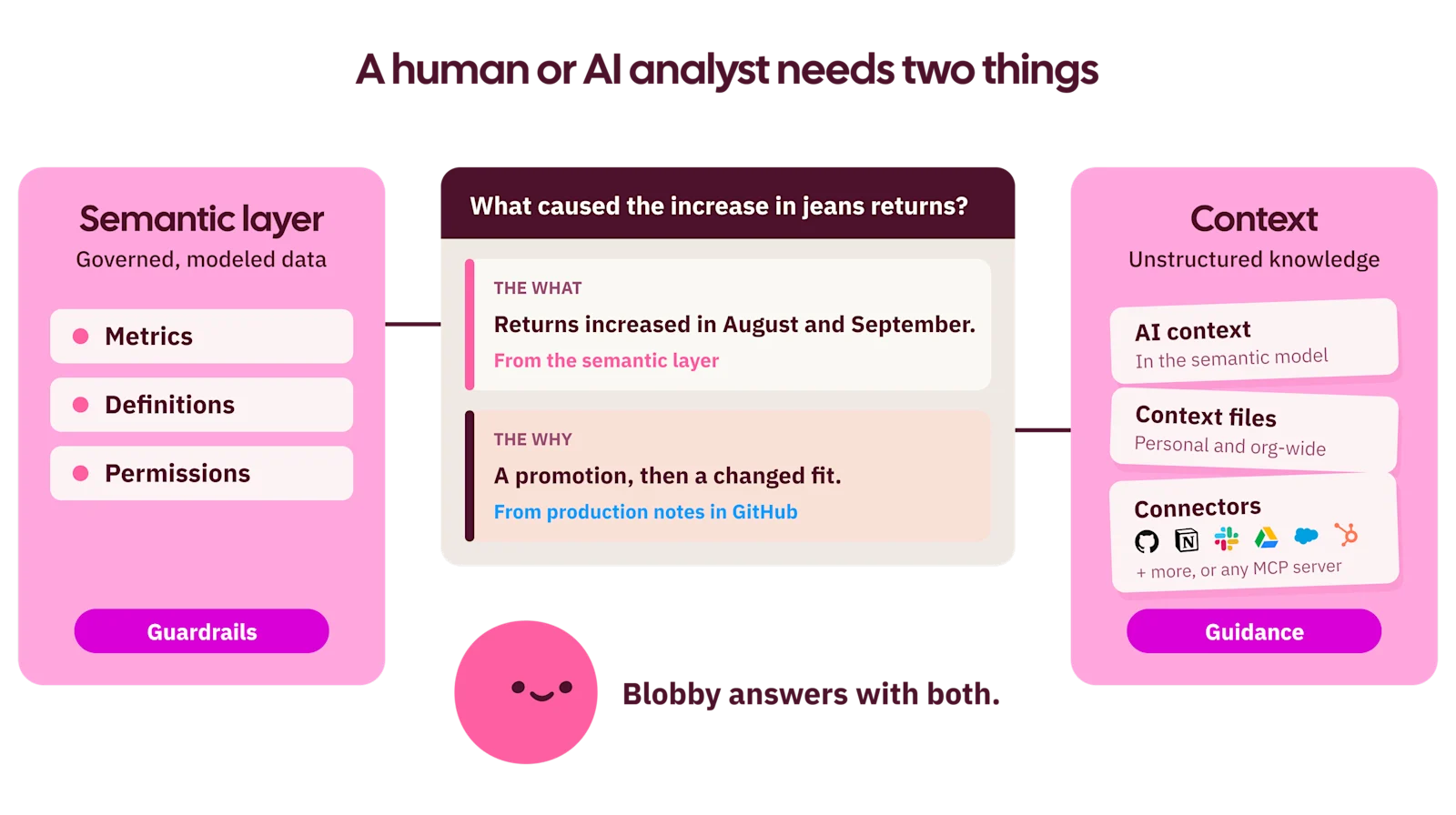
If you’re making a board deck, the revenue number should be coming from your trusted semantic layer to make sure you have the same number regardless of who asks the question. But then things like how to format the deck, that’s soft context that can live in a context file, and maybe the template lives somewhere in Notion or Google Drive, which you can reach through a connector.
Connectors for your other tools #
Much of your context already lives where it belongs. Some companies keep their guidelines and notes in GitHub or Notion, and that’s already their source of truth. You wouldn’t want to download all of your Google Drive assets and add them to Omni.
That’s what connectors are for, and we’ve rebuilt and expanded them. Here’s what’s new:
Dozens of new connectors: The AI Hub now has ready-made connectors for tools like Salesforce, HubSpot, Gong, and Linear, alongside Notion, Slack, and Google Drive.
Connect any MCP server: Admins can connect any tool that has an MCP server from the AI Hub.
Org-level and individual authentication: Connect with one shared key for the whole org, or with each person’s own sign-in.
Automatic connection prompts: Blobby can automatically prompt for a connection based on context, so people get connected right when it matters.
Multiple connections to the same source: Set up more than one connection to the same tool, like separate Notion workspaces or GitHub orgs.
Connector context in embedded Omni: Shared-key connectors also work in embedded Omni.
Two-way connections: Connectors aren’t read-only. Depending on the tool, Blobby can write back to it too.
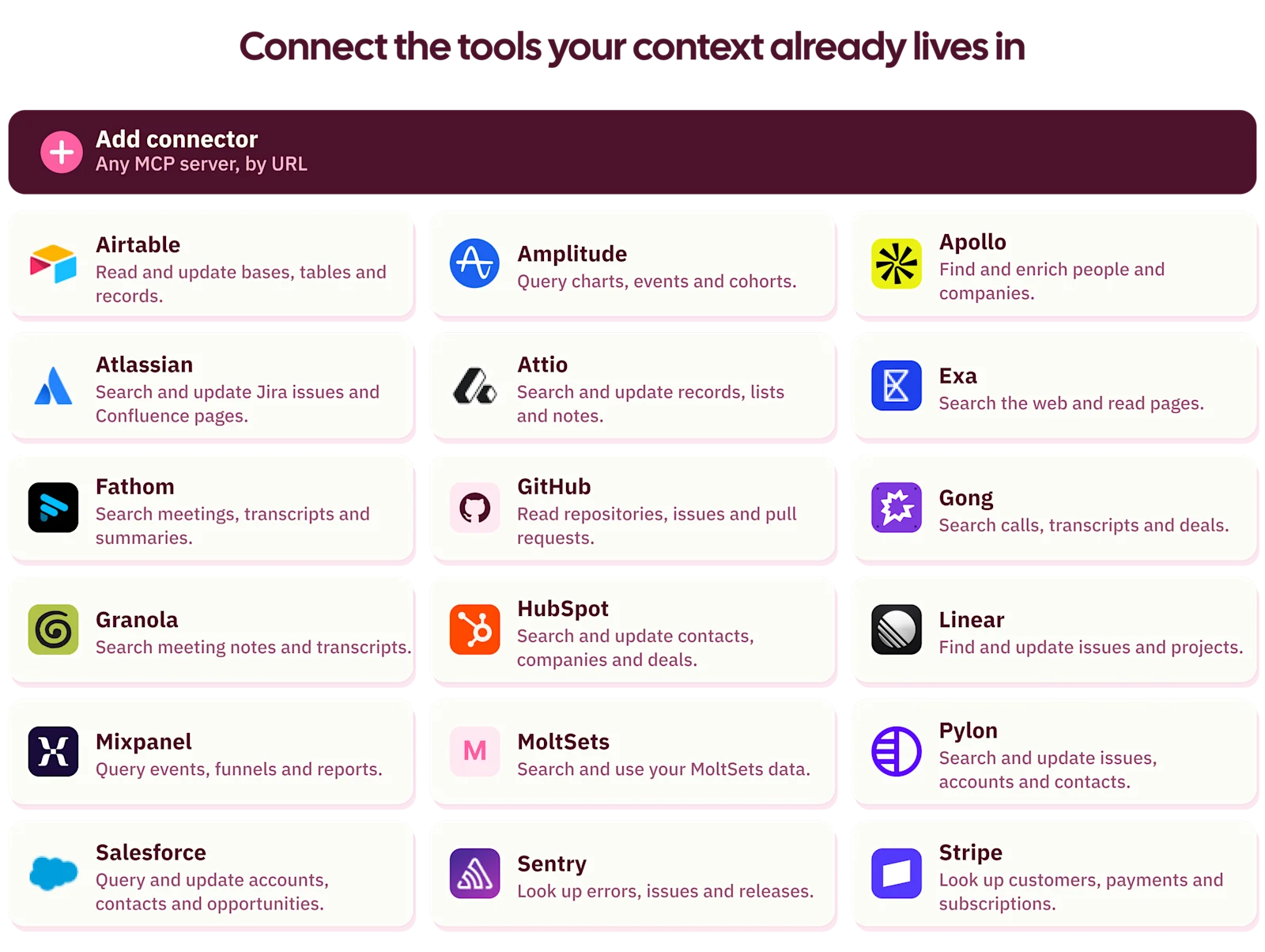
Connectors work best next to a context file, so let’s take a look at what those open up 👇
Context files for everything else #
Context files are Markdown files, like agents.md or design.md. They’re deceptively simple, with open-ended use cases for analytics.
Context files can be stored at the global or user level. They can be loaded into every chat at the start (Required), or only invoked by Blobby when relevant (Contextual).
Think of it at the org level: you’ve got your code, rules, guidelines, and best practices. Then at a personal level, you can have context about you and your role and your preferences about charting or building apps, and how Blobby should respond.
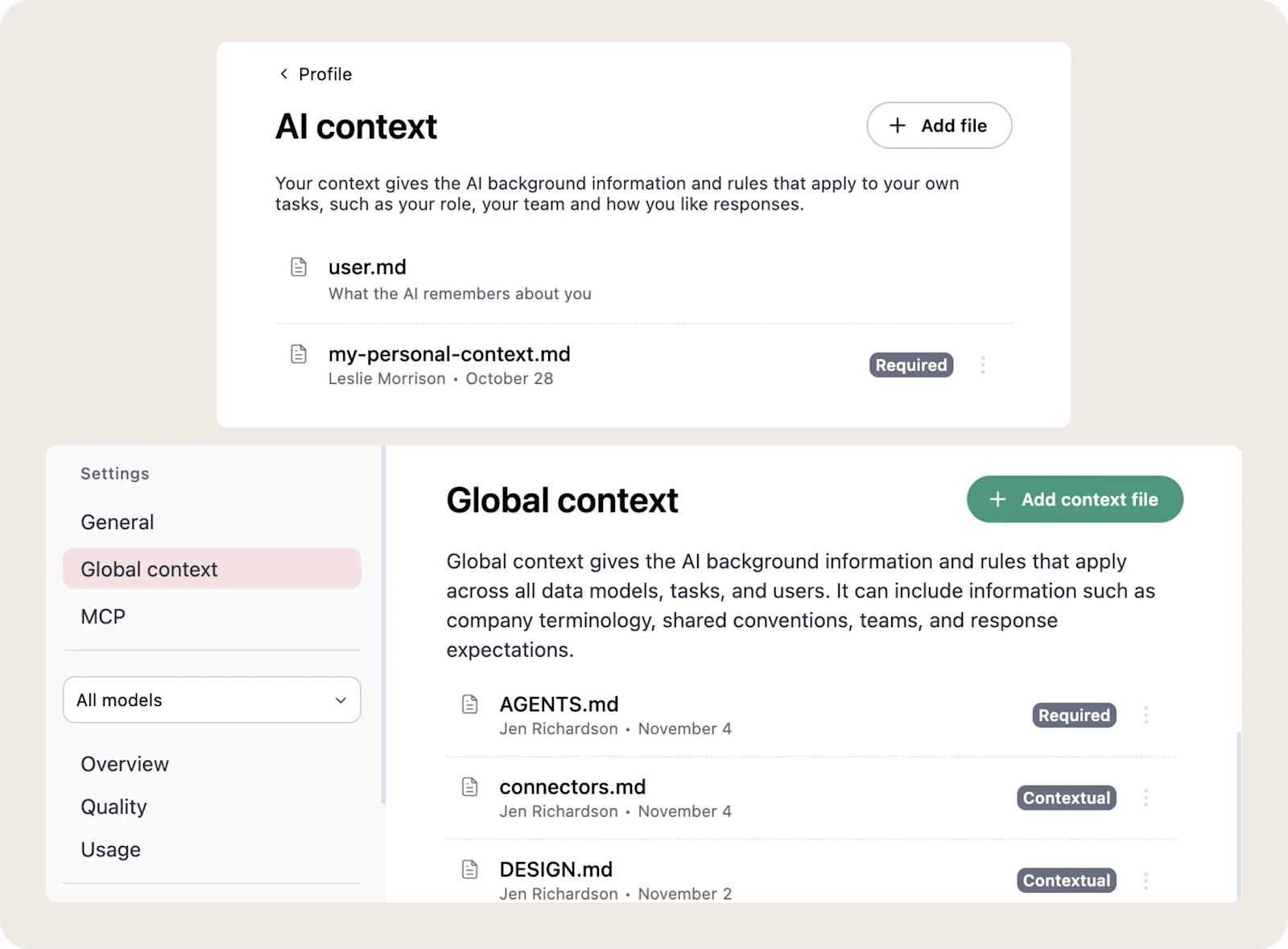
A context file can hold anything your team knows that doesn’t fit in a data model. We’ll likely see customers use this in all sorts of creative and funky ways that we can’t anticipate, but here are a few we expect to see:
A company description: What you do, what your teams and products are called, and the terms that mean something specific to you.
OKRs: Your goals for the quarter, so Blobby can map real-time progress to them.
A map (agents.md): What context exists, where it lives, and when Blobby should go get it. That can include content in connected tools like GitHub, Notion, or Drive.
A design file (design.md): Brand colors, chart conventions, and app-building guidelines, so what Blobby builds matches the rest of your work.
Templates: A board deck or report format you already use.
Personal files: Your role and preferences for how you want visuals displayed, summaries, and longer form answers.
Internally, our go-to-market team keeps a file that maps all of our sales content: what each piece is for and when to share it. Without that map, an LLM does what a new sales rep does. They fall back to general talking points that don’t address the needs of the moment. With it, a rep who’s handling a specific need or objection can ask what to send a customer, and Blobby will provide a relevant, detailed response.
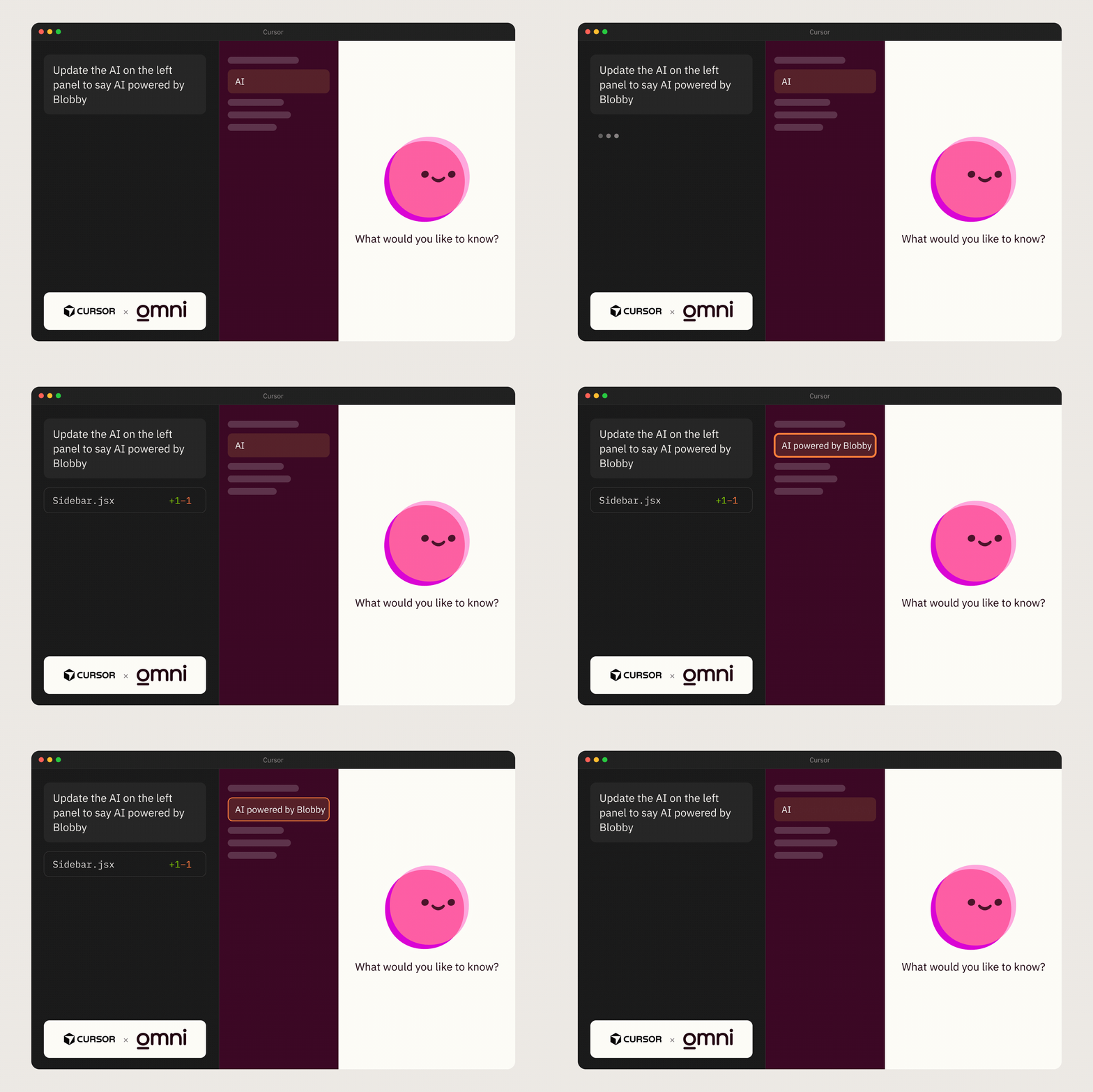
This context is also fully accessible to Blobby. That means that you can simply ask Blobby to update the context based on information you’ve provided or a conversation you’ve been having, and it will update the context you’re authorized to edit based on your permissions. It’s the same loop as promoting a definition to the model from chat.
If your context doesn’t already live in another tool, the fastest and easiest way to get started is to put it in a context file. Because when it’s in Omni, we have direct access. It’s always going to be faster and a little more accurate, and it comes with the same permissions and controls as the rest of Omni.
Using connectors and context files together #
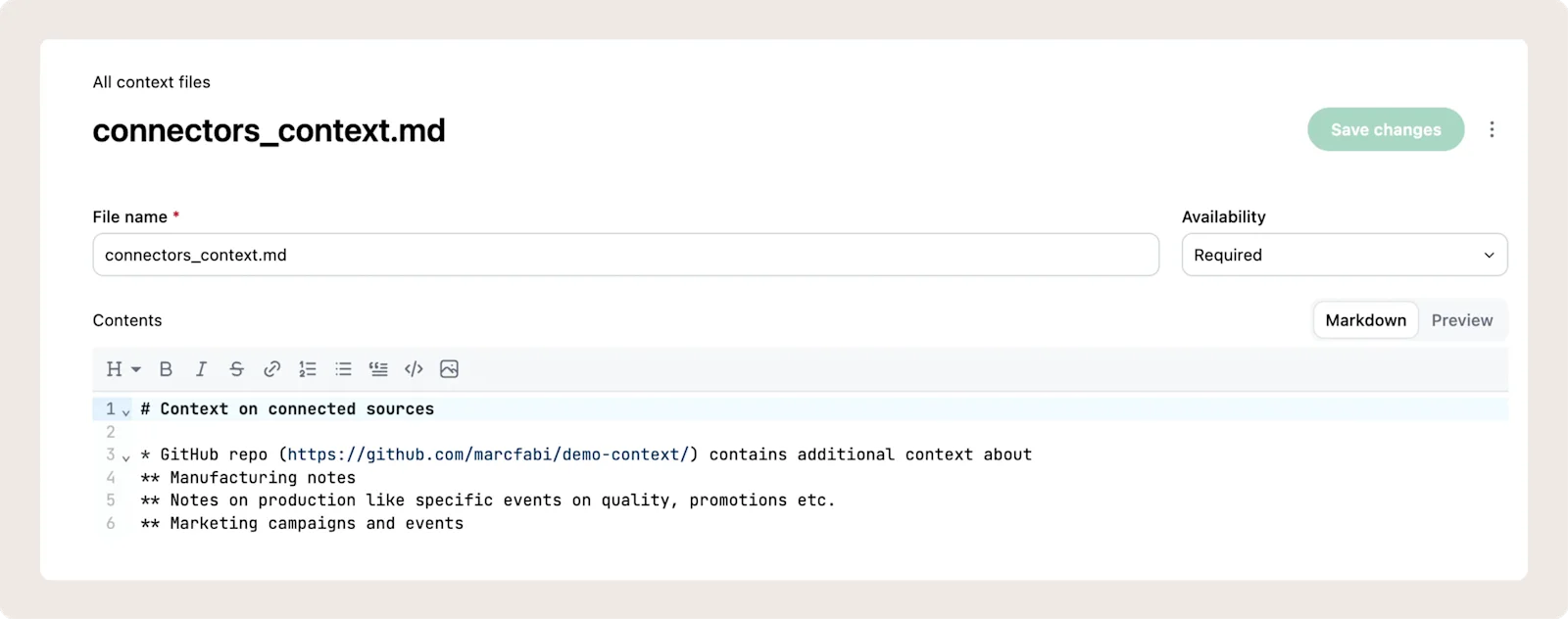
Here’s what that looks like in practice. In my demo above, I asked Blobby what caused an increase in jeans returns in August and September. With a context file that says where the production notes live, Blobby can call GitHub and retrieve them, then combine those notes with our governed data to give a detailed, useful answer: a likely back-to-school promotion in August, and a changed fit in September.
That context file is six lines. It says our GitHub repo holds manufacturing notes, production notes, and marketing campaigns, and that’s it.
Try it yourself #
We’ve known context was critical for making AI analytics work for a while, and we’re excited to see how customers put these new ways to add context to work. If you’re using this in a way we didn’t anticipate, we’d love to hear about it.
You don’t need a larger strategy to see this work.
For a connector, open the AI Hub, go to Connectors, click Add connector, and choose how people connect.
For a context file, go to Global context in the AI Hub (or to user profile > AI context), and add a file. Pick Required if Blobby should read it in every chat, or Contextual if it should read it only when it thinks the answer might be in there. Then ask a question your data alone can’t answer.
Somebody at your company already did the work. Now Blobby can put it to use in Omni.