Building a chart is all fun and games…until you add a second measure.
You start with something simple: revenue over time as a bar chart. Then you add margin, except that probably makes more sense as a line. Then revenue needs to be broken out by region as a stacked bar chart, while margin stays as a single series. Now you’ve got large revenue numbers alongside margin percentages, so margin needs its own axis. And while we’re here, maybe labels only make sense on the bars.
Before long, one straightforward chart has two chart types, multiple series, different units, separate axes, and its own rules for labels and colors.
That’s what our new X/Y chart-building experience, viz layers, solves.
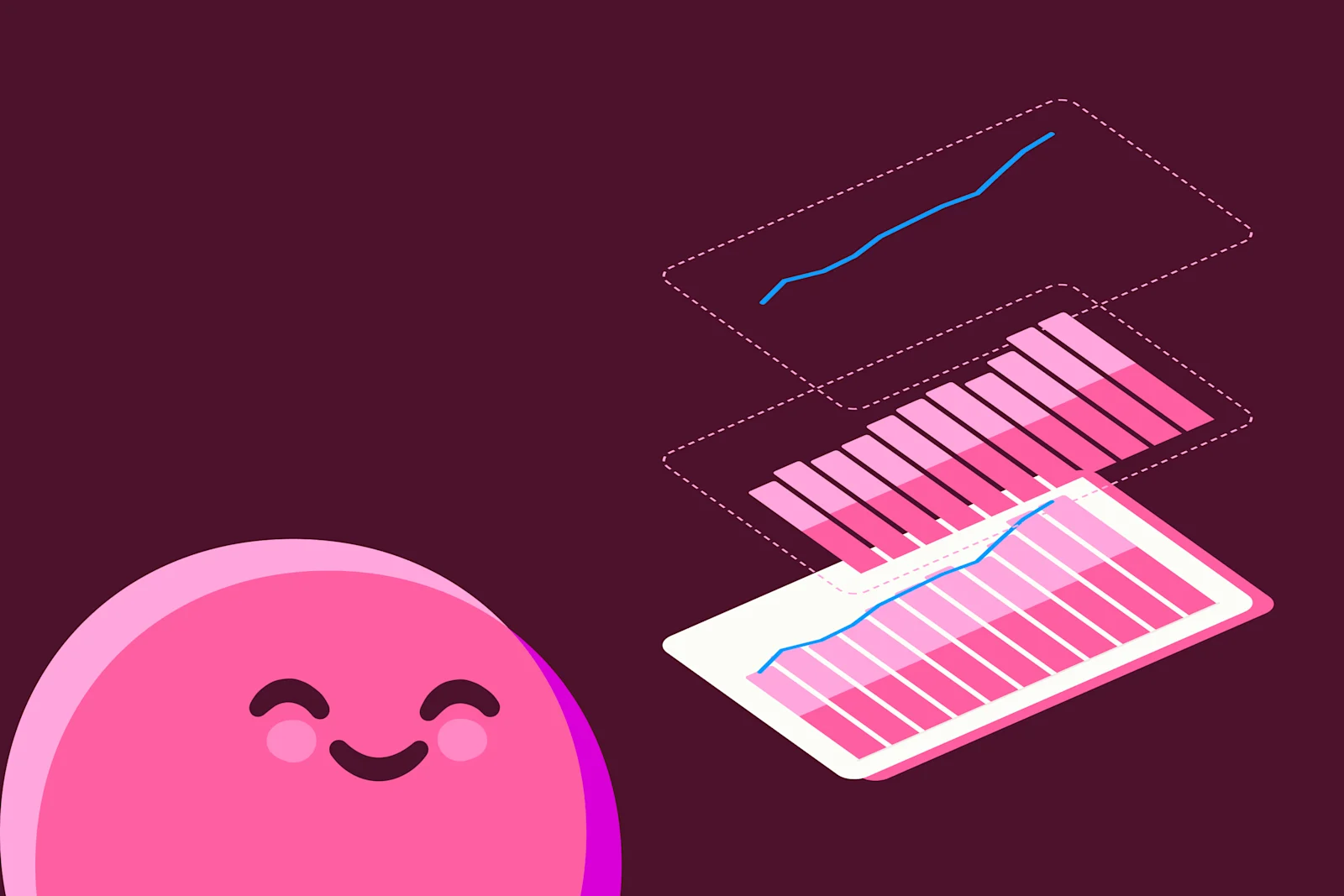
Each measure gets its own layer for things like chart type, color, labels, stacking, and axes, so you can keep adding complexity without losing track of what controls what.
Just like every workflow in Omni, viz layers allow you to build in the way that works best for you. AI can be especially useful to help create the initial chart quickly, then you may want to touch the controls for the final choices: which series should stand out, which axis it belongs on, and how the chart should communicate the answer. In Omni, those workflows stay connected. You can start with the Agent, then keep refining the visualization directly in the editor. Using the Agent is also a great way to learn how the new system works. You can ask the Agent to create a new chart, then inspect the controls to see how it configured everything for that chart type. You can even ask the Agent about the new features and how they work, since it has full access to our documentation.
Control each layer independently #
Each measure you add to a chart can have its own mark type, color mapping, label settings, and formatting.
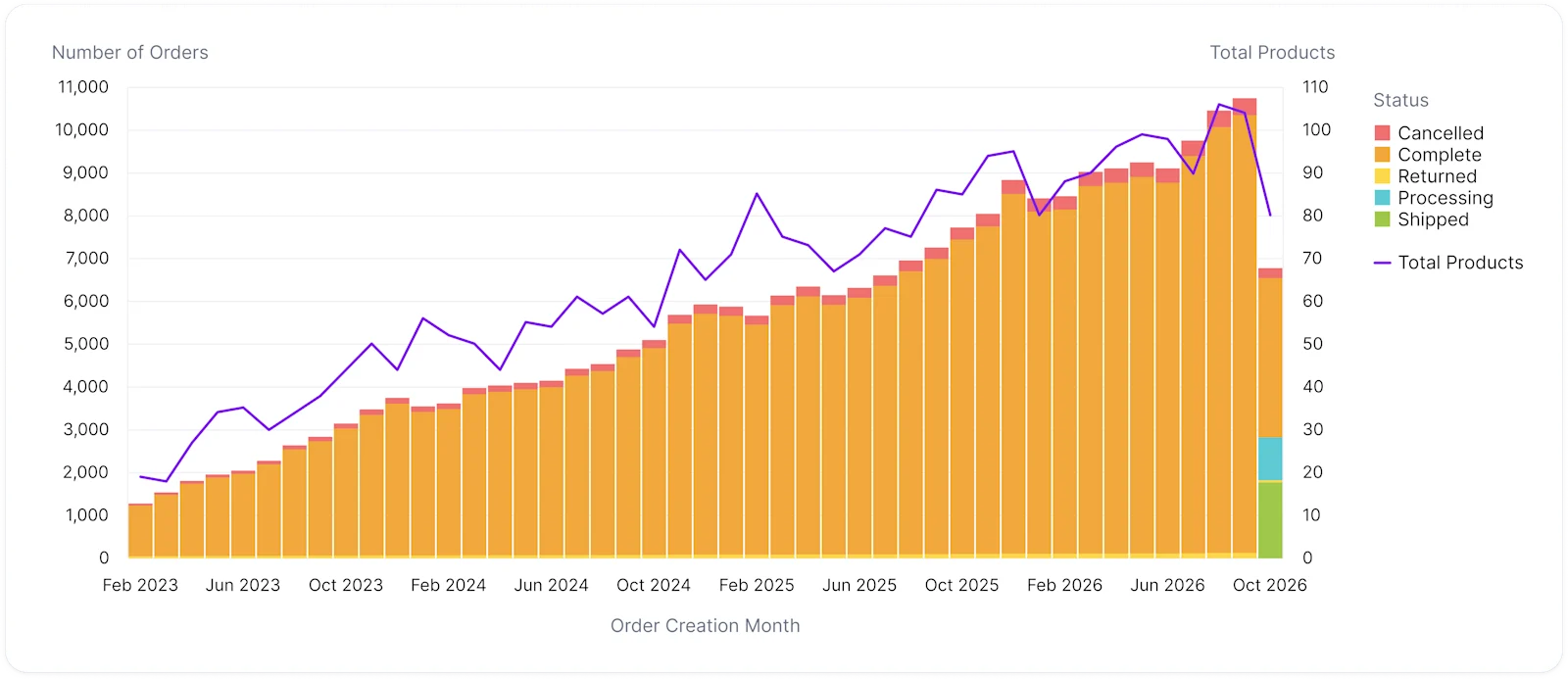
That means a chart can easily mix bars, lines, different axes, and different levels of detail. And if all you need is a simple bar or line chart, there’s nothing extra to manage. The additional controls are there when the chart needs them.
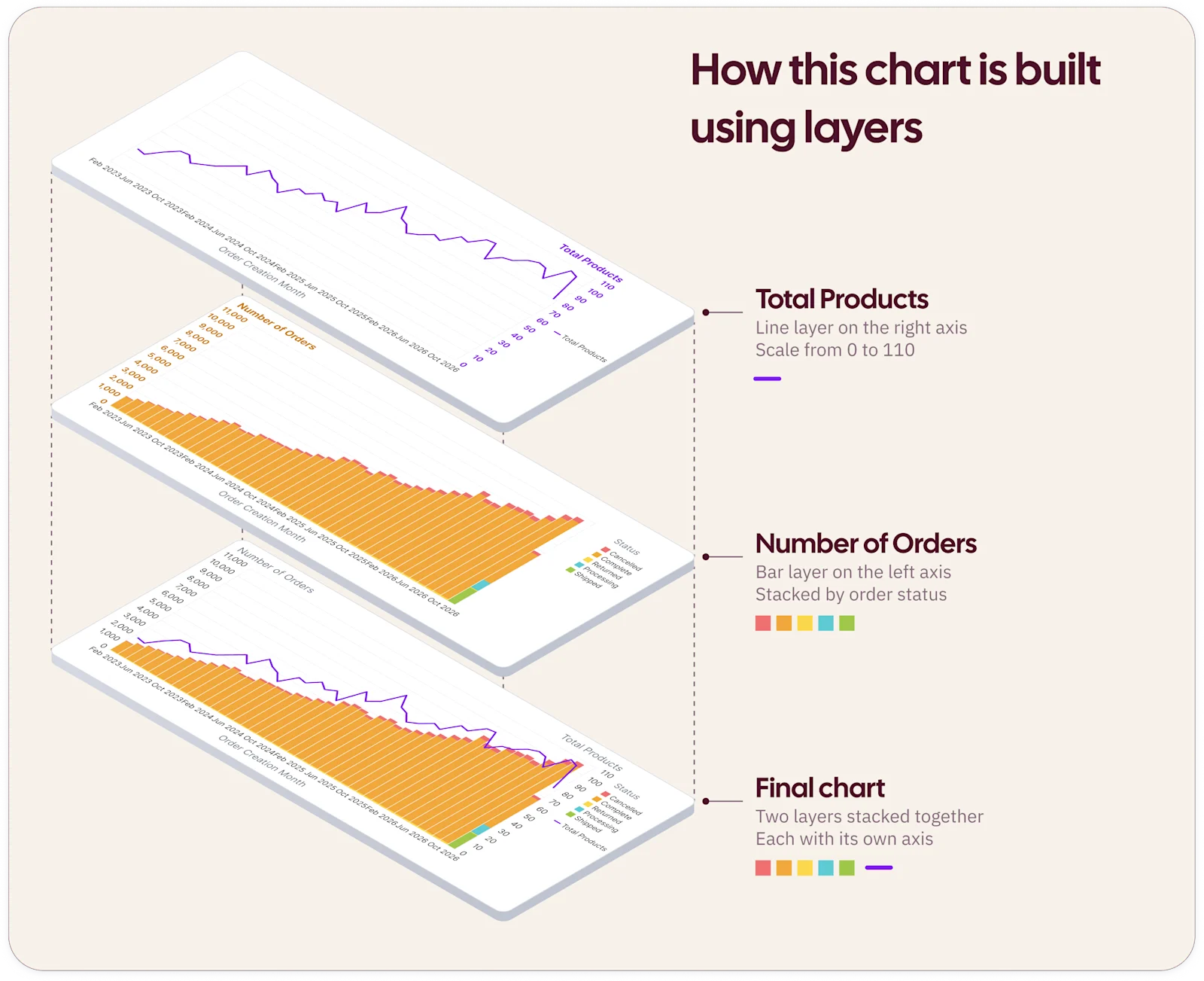
For charts that need even more customization, Omni still supports Vega-Lite. Layers bring more of that flexibility directly into the regular chart editor, so you can build a wider range of visualizations without writing custom code.
Group measures when they belong together #
Layers don’t always have to represent a single measure.
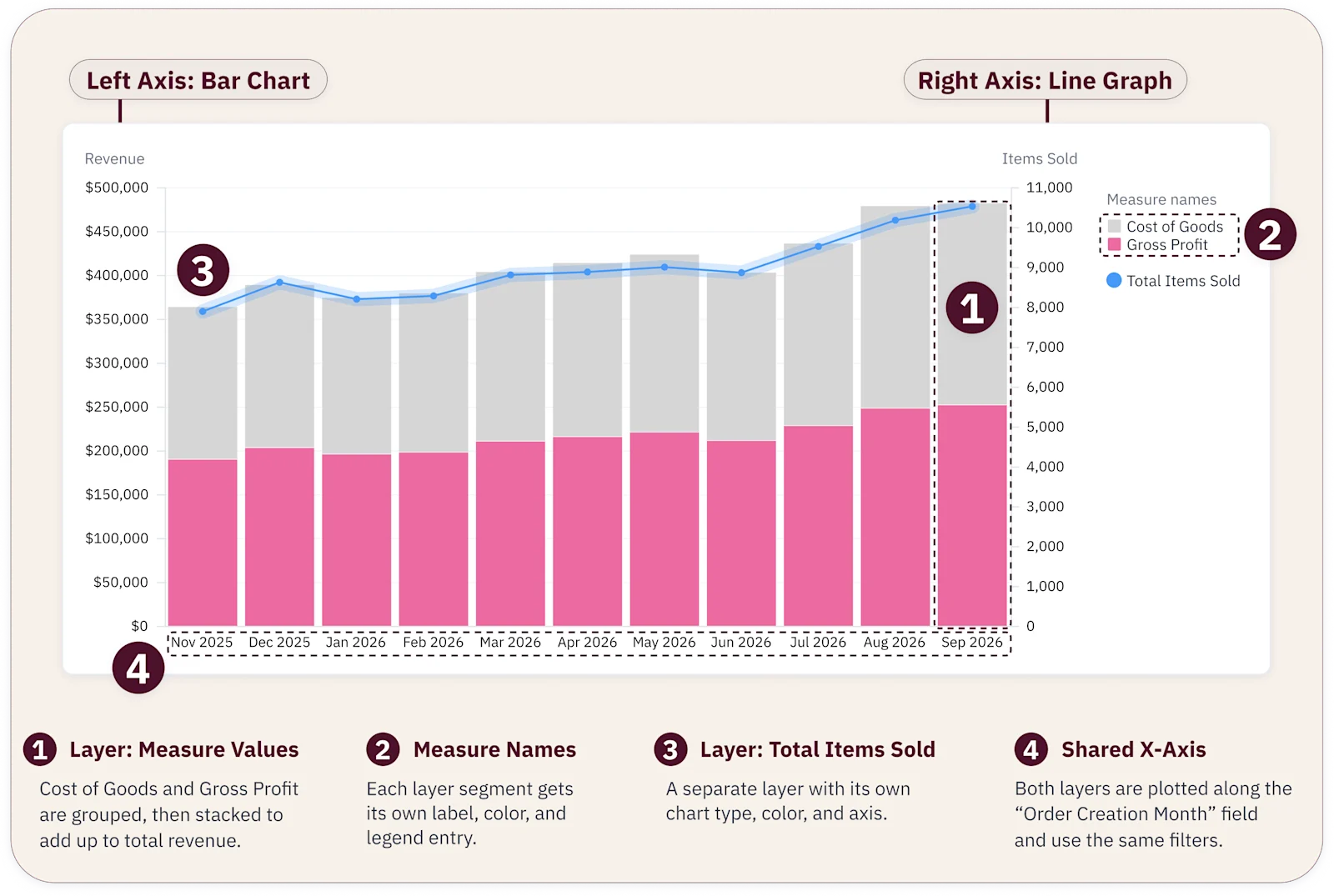
With Measure values, you can put multiple measures into one layer. Measure names lets you distinguish between them, so those measures can be stacked, grouped, colored separately, or split into small multiples.
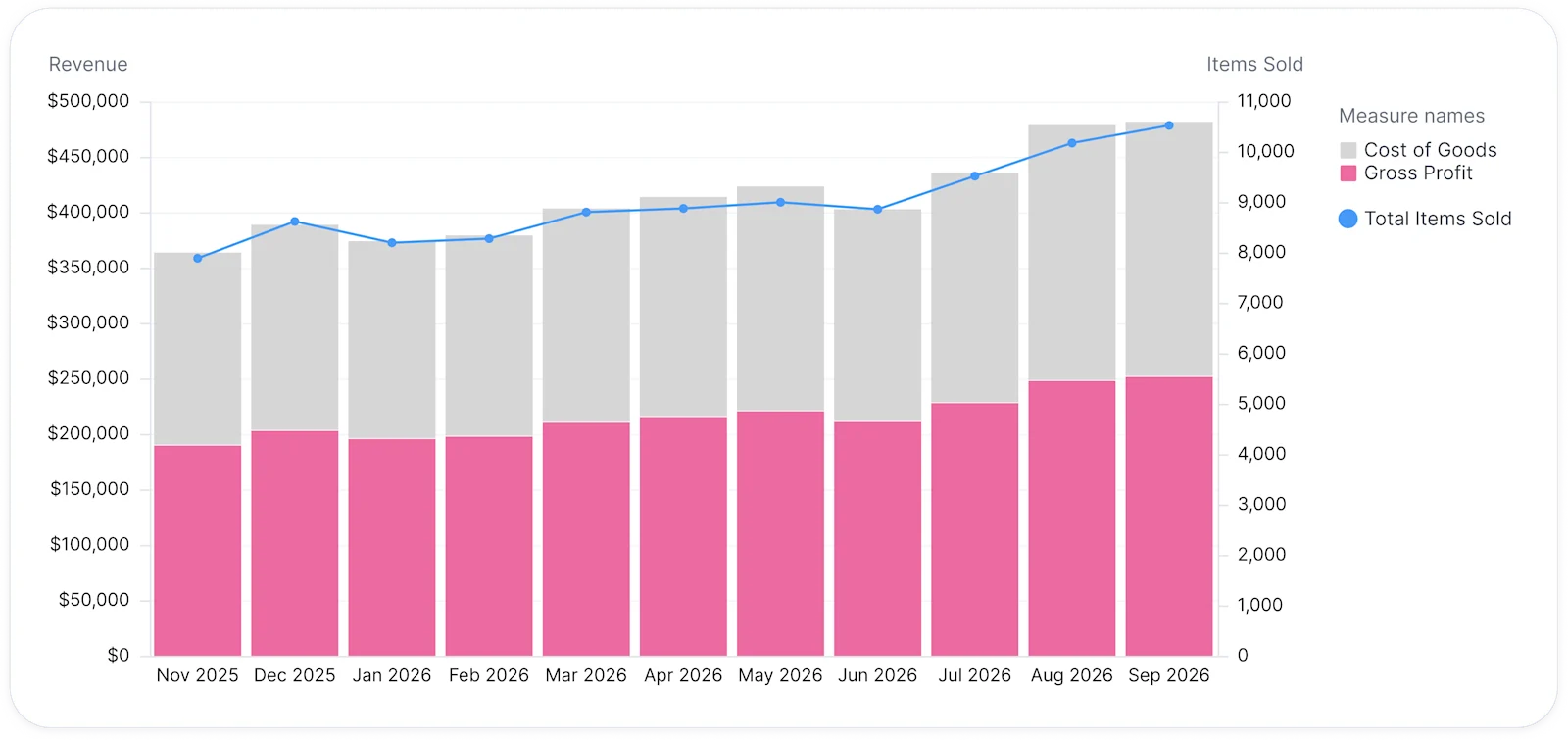
For example, cost of goods and gross profit can share one layer and stack into total revenue, while items sold stays in its own layer on a separate axis. The same layer can also be grouped or split into small multiples, with no change to the query.
Different layers can use different levels of detail #
Layers can also use different levels of detail from the same query.
Say your query includes month, order status, order count, and product count. You want order count stacked by status, but product count shown as one line. The bars need order status, but the line layer doesn’t.
For some measures, adding up the rows already returned by the query would give you the wrong answer. Distinct counts are one example.
That’s where smart aggregation comes in. When a layer needs a different level of aggregation, Omni will automatically enable the necessary totals or subtotals on the query and use them in the visualization.
Work across layers #
Layers can be configured independently, but some settings still need to work across the chart.
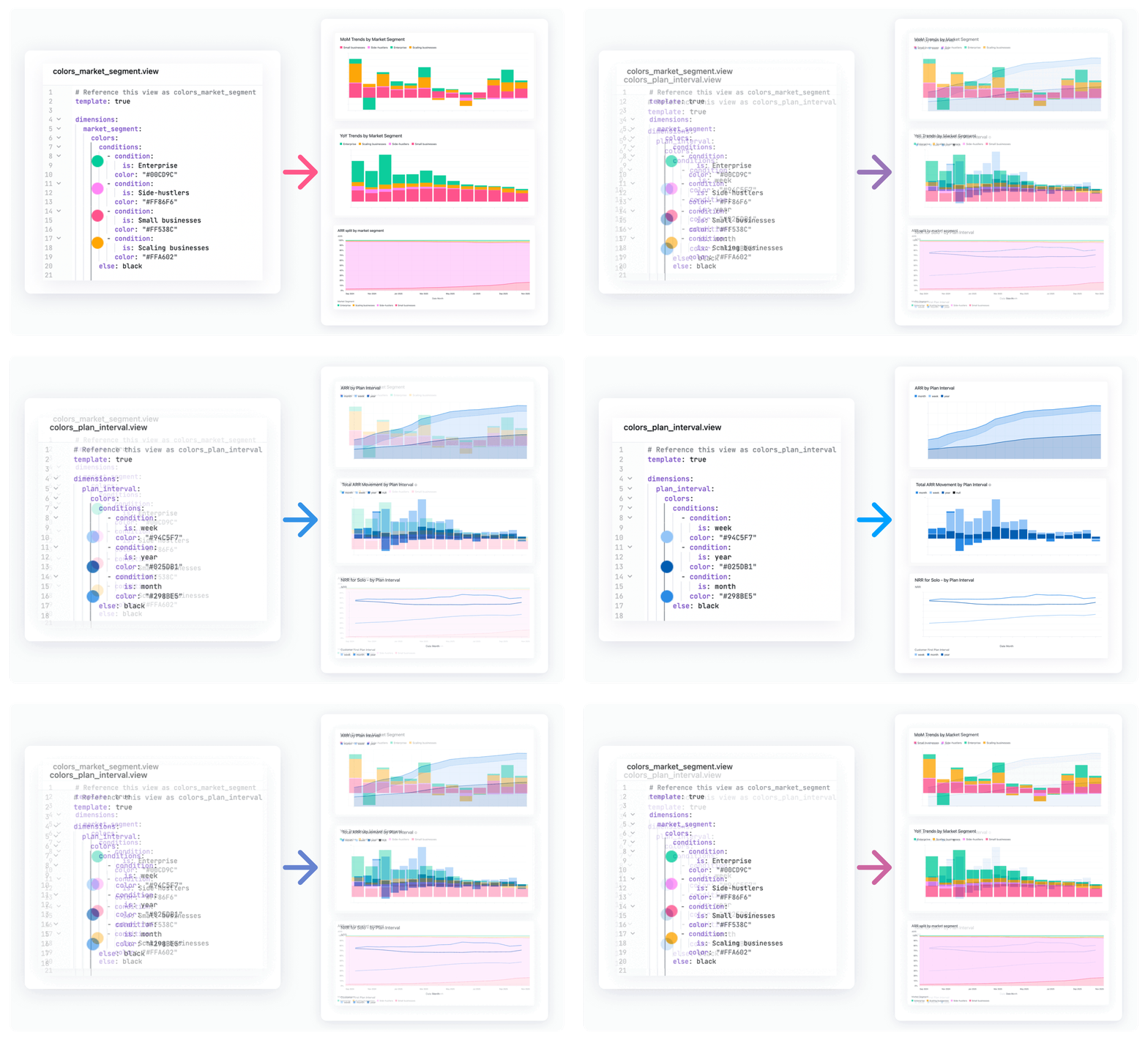
Colors are a good example. If two layers use the same field for color, they can share the same color mapping and legend. The chart palette also coordinates colors across layers, so separate series don’t accidentally reuse them.
And if colors are defined in your model, Omni can keep those mappings consistent across visualizations. For example, Photoroom color-codes metrics in their data model, so each category carries a consistent visual signal everywhere it appears. These visual cues help remove ambiguity across the company, helping everyone quickly interpret data and maintain alignment.
You can also align zero across left and right axes and make changes across multiple layers at once.
More reasons to build with layers #
Building viz layers meant improving the entire system around it. Along the way, we shipped dozens of improvements and long-standing feature requests. The result is more than a new way to configure the same charts. It’s a more flexible foundation for building visualizations in Omni.
Build with AI: Our AI agent, Blobby, can create visualizations in the new layers system. You can create a layered chart with AI, then ask for some tweaks, or jump into the editor yourself to refine the chart.
More control, without custom code: Mix chart types, axes, labels, colors, stacking, and levels of detail directly in the editor.
A foundation for what comes next: Layers runs on our brand new visualization compiler. New chart capabilities build on the layers model, so they no longer have to work around the classic editor’s limits.
Existing charts can stay in the classic editor, and you can preview them in layers before moving them over using our automatic upgrade option.
Start building with viz layers #
We’re really excited about layers because it opens a whole new field of possibilities in the world of visualization. With the ability to compose individually styled layers and mix and match mark types, it empowers you as the visualization designer to flex your creativity and create something truly unique. We can’t wait to see what you build!
Check out the layers documentation to learn more about layers, Measure names and values, smart aggregation, palettes, axes, stacking, and more.